If you have requirement to redirect SharePoint users to new URL. Here is the step by step approach on creating a site redirect using Content Editor Web Part (CWEP) and JavaScript:
Here is the approach:
Create a subsite or new site collection in the same server or in other server. Once your subsite or new site collection is ready, make the page simple by removing all existing web parts and follow the below mentioned steps.
1. Click on “Site Actions” > “Edit Page”
2. Add Content Editor Web Part (CEWP) to a zone of your choice by clicking on “Add a Web Part”
3. This will bring up “Add Web Parts – Webpage Dialog” windows
4. If you don’t see “Content Editor Web Part” expand “All Web Parts” and it’s usually under “Miscellaneous” section
5. Tick “Content Editor Web Part” and click on “Add” button
6. Add content to CEWP either by clicking “open the tool pane” link or edit > Modify Shared Web Part
7. The previous step will open the Web Part properties in the right pane of the page. Click on “Source Editor” button
8. “Text Entry – Webpage Dialog” Window will open with blank page
9. Add the following JavaScript to “Text Entry – Webpage Dialog” window and click “Save” button.
<Html>
<head>
<script language="JavaScript">
</script>
<meta http-equiv="refresh" content="10;url=http://servername:3333/.../[subusite]">
</head>
<body>
"Provide the Information you want to read the users"<a href=http://servername:3333/.../[subusite]>Click here to Continue>/a>
</body>
</html>
10. Users will be directed to the new URL in 10 seconds (in the above script it’s 10 seconds. This value can be modified by changing content="10 value based on the content to be read on the page.)
Monday, August 31, 2009

Saturday, August 29, 2009
SharePoint Approval Workflow Vs Outlook Voting
Approval and Routing of Documents via Outlook Voting:
SharePoint workflows are being recommended for the Business process and under the assumption that such a recommendation will not be timely in its implementation, a contingency method for routing and approval of documents has been developed. This method involves the use of Outlook as a means to transport the document with the addition of “voting buttons” to indicate the approval of different parties involved in the transaction.
Pros:
- Easy to configure and retrieve the results
- Request a delivery receipt for the message
- Request a Read receipt for the message
- Set an expiration date for the message
Cons:
- Outlook voting involves manual process for each and every document approval configuration
- The voting results are only available in Outlook of a specific user
- User has to verify the results manually and take a decision to Approve or Reject the document
- Not possible to set remainder or due date for response.
SharePoint Approval Workflow:
A SharePoint workflow is the automated movement of documents or items through a sequence of actions or tasks that are related to a business process. I would define a workflow as a business process, a chain of steps that need to be performed in order to accomplish a goal. Out of the box SharePoint has the below mentioned workflow availability.
MOSS 2007 Workflow Availability:
- Approval (Serial\Parallel)
- Collect Feedback
- Collect Signatures (Serial\Parallel)
- Disposition Approval
Approval Workflow:
The Approval workflow routes a document or item that is saved to a list or library to a group of people for approval. By default, the Serial Approval workflow is associated with Document Content Types.
Pros:
- Possible to configure the workflow to a Content Types, Lists or Document Libraries
- Reuse the same workflow configuration for all documents or list items
- Start an Approval workflow directly from a document or item in a list or library
- Have an option to Stat an Approval workflow when a new item is created or changed in the list or document library
- The server assigns tasks to all individual participants or a group.
- Easy to track the task status and available on the server
- The server sends e-mail alerts to all participants and remainders after the due date
- Participants can click a link in the e-mail task alert to open the document or item to be approved
- Participants can choose to approve, reject, or reassign their approval tasks
- While the workflow is in progress, the workflow owner or the workflow participants can view the Workflow Status page to see which participants have completed their workflow tasks
- When the workflow participants complete their workflow tasks, the workflow ends, and the workflow owner is automatically notified that the workflow is complete
Cons:
- Not possible to request a delivery receipt for the message
- Not possible to request a Read receipt for the message
Wednesday, April 1, 2009
Link to a Document Content Type SharePoint 2007 – Sending in a email message is not working
Link to a Document is one of the powerful features of SharePoint 2007. Unfortunately I am facing a wired error while using the Link to a document content type. We use the Content Type “Link to a Document” to link to a document that could be stored in another document library.
Issue:
If I send the link of a LINK content type in an email message, the user cannot open the file by clicking on the link in the message (It is opening a blank document, presentation etc..based on file type). Copying and pasting this link in the browser works fine.
An example link: http://portal1/sites/sales/DocumentLink/LinkToMasterDocument.aspx
This does not work(Opens blank document, presentation..etc.) if you click on it, but works if you cut and paste it in a browser.
Here are the steps which i followed to create a link content type:
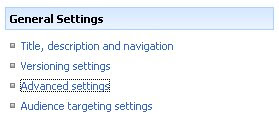
If the document library where you want to use the “Link to a Document” hasn’t been setup to use Content Types, you’ll have to click Settings, Document Library Settings, there you’ll need to access the Advanced Settings.
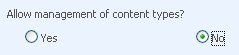
We need to add a Content Type, but before we can do this we’ll have to tell our Document Library that it can make use of different Content Types. Select “Yes” for the “Allow management of Content Types“.
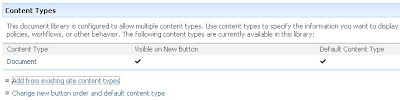
When you return to the Document Library Settings, you’ll see a new section called Content Types, this is where we’ll add a new Content Type, click “Add from exisiting Content Type“.
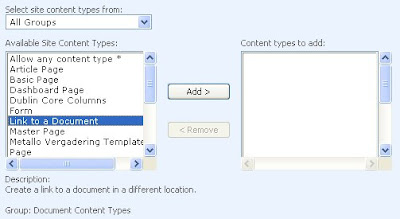
The content type we need is “Link to a Document“, add it here.
When you return to your Document Library and click new, you’ll see that you have a new option to choose from, “Link to a Document“.
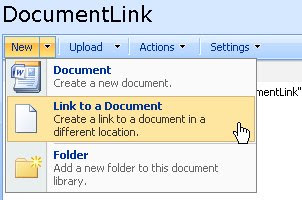
Let’s make a link to a Document in another Document Library, click “Link to a Document”. You’ll have to enter a name for the Link and enter the path to the Document you want to link to.
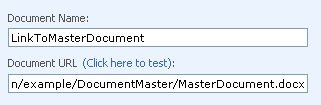
After confirming this is what your link looks like.
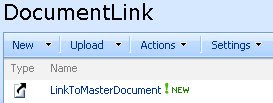
We made link to a document that’s saved in another document library, whenever you make a change to the master document, you don’t need to worry about the link, and it will point to the changed document.
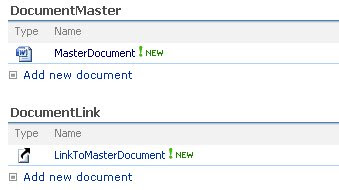
Up to here it works fine. It’s really a good functionality. Here is the Issue.
If I send the link of a “LinkToMasterDocument” in an email message, the user cannot open the file by clicking on the link in the message. Copying and pasting this link in the browser works fine.
Here is the snapshot:
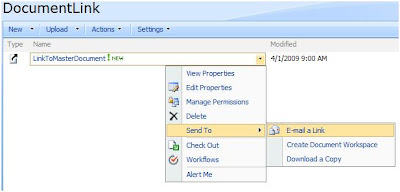
Email Message:
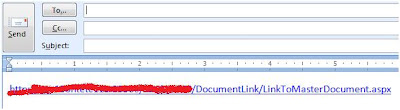
Do you see a workaround for this?
Cheers!!!
Issue:
If I send the link of a LINK content type in an email message, the user cannot open the file by clicking on the link in the message (It is opening a blank document, presentation etc..based on file type). Copying and pasting this link in the browser works fine.
An example link: http://portal1/sites/sales/DocumentLink/LinkToMasterDocument.aspx
This does not work(Opens blank document, presentation..etc.) if you click on it, but works if you cut and paste it in a browser.
Here are the steps which i followed to create a link content type:
If the document library where you want to use the “Link to a Document” hasn’t been setup to use Content Types, you’ll have to click Settings, Document Library Settings, there you’ll need to access the Advanced Settings.

We need to add a Content Type, but before we can do this we’ll have to tell our Document Library that it can make use of different Content Types. Select “Yes” for the “Allow management of Content Types“.

When you return to the Document Library Settings, you’ll see a new section called Content Types, this is where we’ll add a new Content Type, click “Add from exisiting Content Type“.

The content type we need is “Link to a Document“, add it here.

When you return to your Document Library and click new, you’ll see that you have a new option to choose from, “Link to a Document“.

Let’s make a link to a Document in another Document Library, click “Link to a Document”. You’ll have to enter a name for the Link and enter the path to the Document you want to link to.

After confirming this is what your link looks like.

We made link to a document that’s saved in another document library, whenever you make a change to the master document, you don’t need to worry about the link, and it will point to the changed document.

Up to here it works fine. It’s really a good functionality. Here is the Issue.
If I send the link of a “LinkToMasterDocument” in an email message, the user cannot open the file by clicking on the link in the message. Copying and pasting this link in the browser works fine.
Here is the snapshot:

Email Message:

An example Link: http://portal1/sites/sales/DocumentLink/LinkToMasterDocument.aspx
This does not work if you click on it, but works if you cut and paste it in a browser.
Do you see a workaround for this?
Cheers!!!
Wednesday, March 5, 2008
Configuration options for Installation of SharePoint 2007 in Single Server and Medium Server Farm Environments
Single Server :
We can quickly publish a SharePoint site by deploying Office SharePoint Server 2007 on a single server computer.
A stand-alone configuration is useful if you want to evaluate Office SharePoint Server 2007 features and capabilities, such as collaboration, document management, and search. A stand-alone configuration is also useful if you are deploying a small number of Web sites and you want to minimize administrative overhead.
When you deploy Office SharePoint Server 2007 on a single server using the default settings, the Setup program automatically installs Microsoft SQL Server 2005 Express Edition and uses it to create the configuration database and content database for your SharePoint sites.
In addition, the Setup program creates a Shared Services Provider (SSP), installs the SharePoint Central Administration Web site and creates your first SharePoint site collection and site.
Hardware and software requirements:
Stand-alone installation:
You can install Office SharePoint Server 2007 on a single computer by using either of the following methods:
- By selecting Basic
- By selecting Advanced, and then selecting Stand-alone in Office SharePoint Server 2007 Setup.
The following table lists the minimum and recommended hardware requirements for deploying Office SharePoint Server 2007, including the deployment of Microsoft SQL Server 2005 Express Edition, for a stand-alone installation.

Configure the server as a Web server:
Before install and configure Office SharePoint Server 2007, we must install and configure the required software. This includes installing and configuring Internet Information Services (IIS) so your computer acts as a Web server, installing the Microsoft .NET Framework version 3.0, and enabling ASP.NET 2.0.
Install and configure Office SharePoint Server 2007 with Microsoft SQL Server 2005 Express Edition:When you install Office SharePoint Server 2007 on a single server, run the Setup program using the Basic option. This option uses the Setup program's default parameters to install Office SharePoint Server 2007 and SQL Server 2005 Express Edition.

 Medium Server:
A medium server farm typically consists of a database server, an application server running Office SharePoint Server 2007, and one or two front-end Web servers running Office SharePoint Server 2007 and IIS. In this configuration, the application server provides indexing services and Excel Calculation Services, and the front-end Web servers service search queries and provide Web content.
All of the Web servers in your server farm must have the same SharePoint Products and Technologies installed. For example, if all of the servers in your server farm are running Office SharePoint Server 2007, you cannot add to your farm a server that is running only Microsoft Office Project Server 2007. To run Office Project Server 2007 and Office SharePoint Server 2007 in your server farm, you must install Office Project Server 2007 and Office SharePoint Server 2007 on each of your Web servers.
Hardware and software requirements:
The primary difference between a single server and a server farm topology is that you can use one or more computers to host the following server roles:
- Application server
- Front-end Web server
- Database server
This section describes the minimum and recommended system requirements for each server role. If you install more than one role on a single computer, ensure that the computer meets the minimum requirements for all server roles.
Application server:
The following table lists the minimum and recommended hardware requirements for deploying an Office SharePoint Server 2007 application server.

Software requirements:
Because Office SharePoint Server 2007 is built on Windows SharePoint Services 3.0, the requirements that apply to Windows SharePoint Services 3.0 also apply to Office SharePoint Server 2007.
It is recommended that you install Office SharePoint Server 2007 on a computer that has a new installation of Windows Server 2003 with SP1 or later and all critical updates.
Office SharePoint Server 2007 administration functions require Internet Explorer 6.0 with the most recent service packs or Internet Explorer 7.0.
The following table lists the minimum and recommended hardware requirements for deploying an Office SharePoint Server 2007 front-end Web server.

Software requirements:
Because a front-end Web server is a subset of an application server, all features on a front-end Web server are available on an application server. The software requirements for the front-end Web server are the same as the software requirements for the application.
Database server:
The computer that hosts the database server role must have SQL Server 2000 with SP3a or later or Microsoft SQL Server 2005 SP1 or later. Some advanced features required SQL Server 2005 Analysis Services SP1 or later.

Medium Server Farm Physical & logical Topology
Subscribe to:
Posts (Atom)